Asset Status Management
Asset statuses are a set of attributes that best describe an asset state. To manage your asset statuses, go to Manage Asset under the Assets menu.

From there, select your desired workspace and click on the Asset Status Management tab.
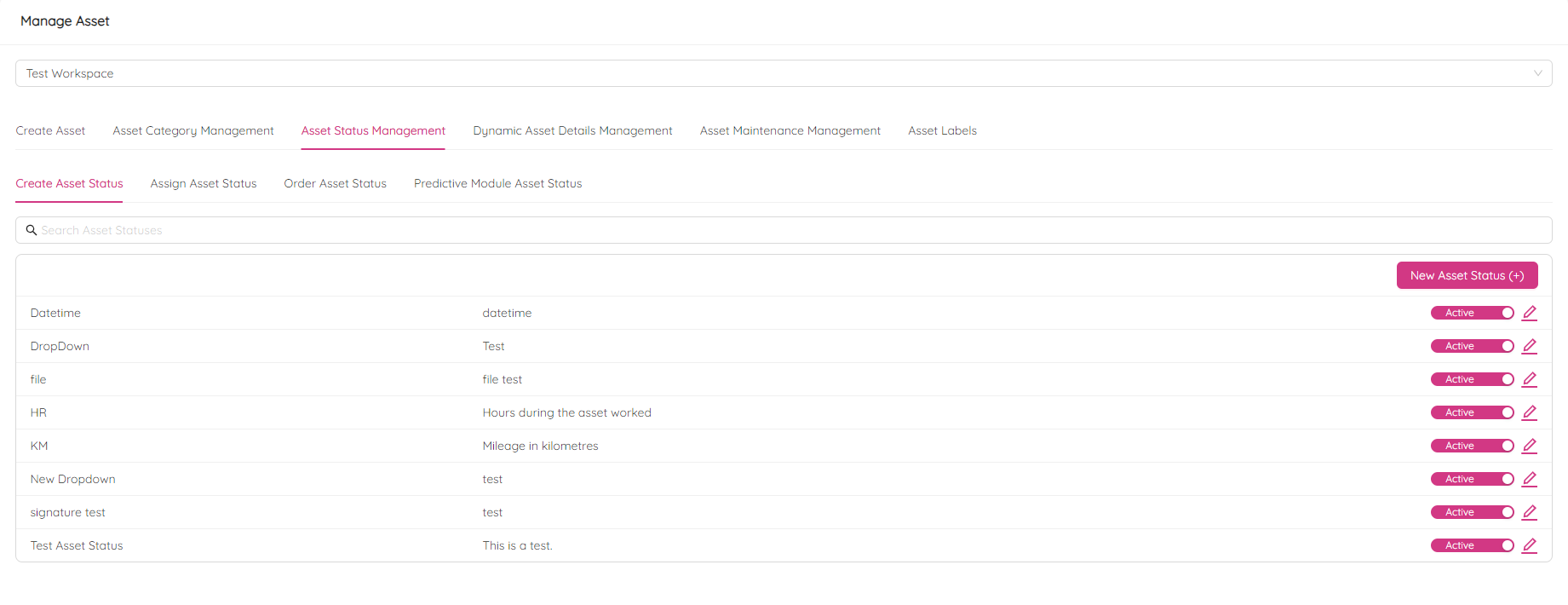
Create Asset Status
To add a new Asset Status, click on the New Asset Status (+) button on the right side of the page.
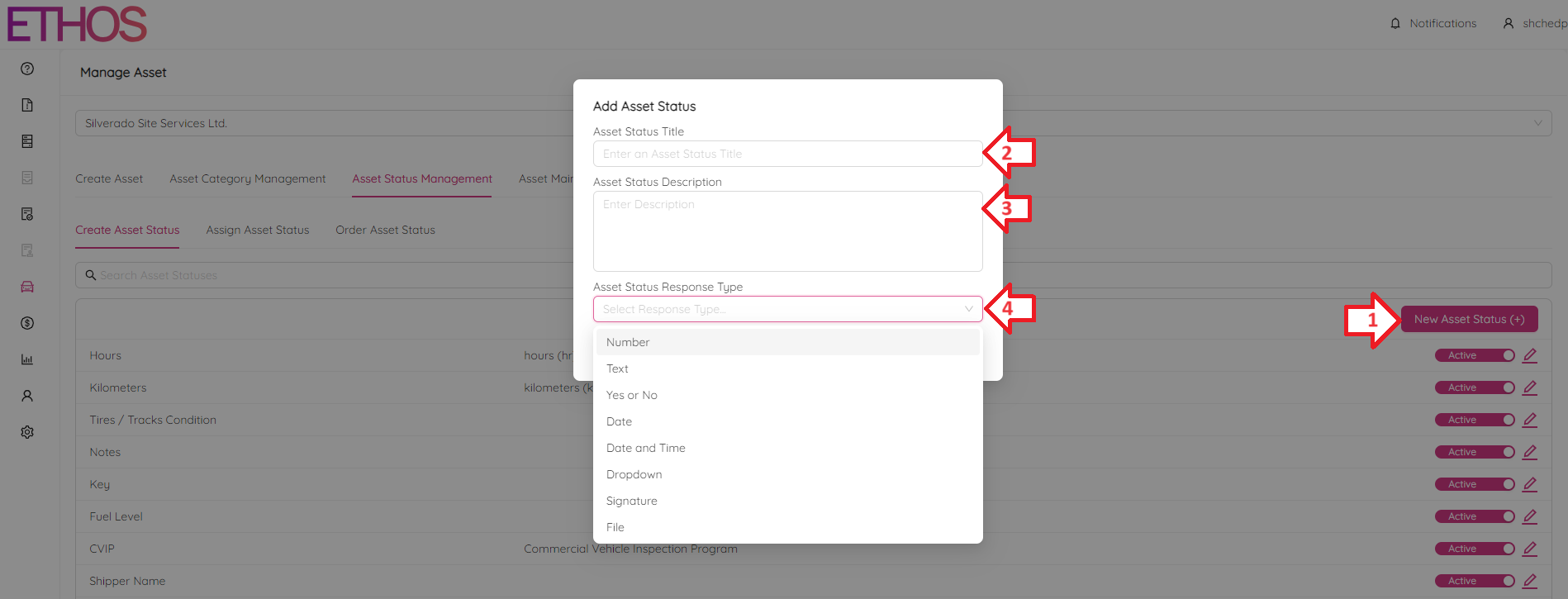
Here, you'll need to provide a title, description, and response type for the new status. Response type defines the type of the attribute and can be one of the following:
- Number
- Text
- Yes/No answer
- Date
- Date and Time
- Dropdown list
- Signature
- File
Please keep in mind that once you've chosen a status type, you won't be able to change it or delete the status.
Edit Asset Status
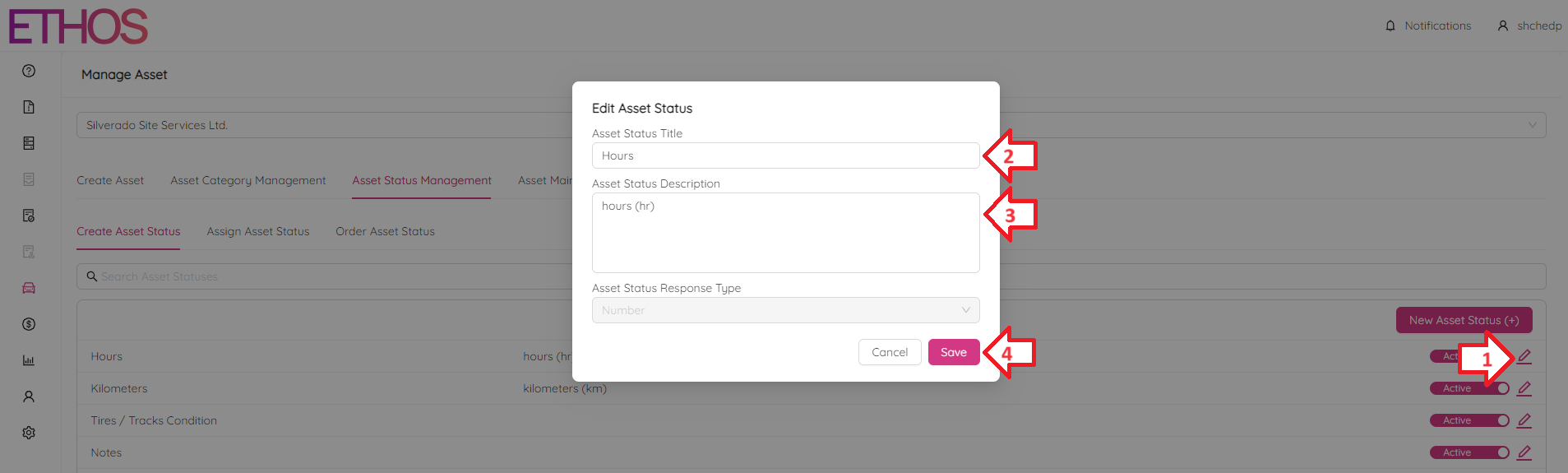
To edit an Asset status, click on the  icon next to the status you want to modify. You can only change the title and description.
NOTE: to search for a specific status, use the Search Asset Statuses bar located above the list of previously created statuses.
Assign Asset Status
The Assing Asset Status tab allows you to flexibly configure previously created statuses. Configurations are made for every Primary and Secondary category. First, you should choose a specific Primary and Secondary category. As a result, you will see a table similar to the one below.
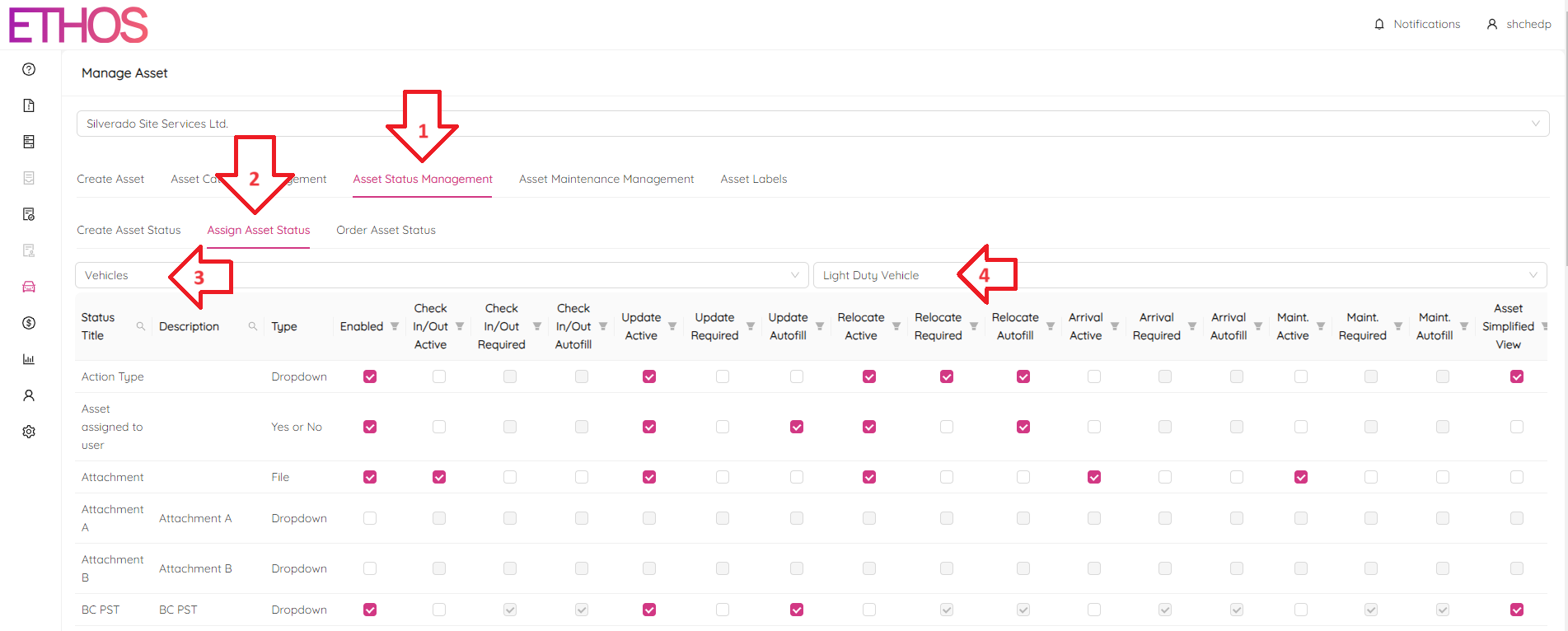
Every row in the table represents a status, while columns are parameters described below.
Enabled - defines if the status is accessible while changing an asset status.
Check In/Check Out Active - if checked, you can fill in the status during the asset Check In/Check Out process.
Check In/Check Out Required - determines if the status is obligatory when Checking In/Checking Out an asset.
Check In/Check Out Autofill - specifies whether a default value is automatically filled in the status field during asset Check In/Check Out.
Update Active - if checked, allows to fill in the status during the Updating Status process.
Update Required - determines if the status is obligatory when updating asset status.
Update Autofill - Specifies whether a default value is automatically filled in the status field during asset update.
Relocate Active - if checked, allows to fill in the status while relocating an asset.
Relocate Required - determines if the status is obligatory when relocating an asset.
Relocate Autofill - specifies whether a default value is automatically filled in the status field during asset relocation.
Arrival Active - if checked, allows to fill in the status during Arrival action.
Arrival Required - determines if the status is obligatory when an asset arrives.
Arrival Autofill - Specifies whether a default value is automatically filled in the status field during asset arrival.
Maint. Active - if checked, allows to fill in the status during the Completing Maintenance process.
Maint. Required - determines if the status is obligatory when completing maintenance.
Maint. Autofill - specifies whether a default value is automatically filled in the status field during asset maintenance.
Asset Simplified View - determines if the status is visible on the simplified view page.
Asset Condensed View - determines if the status is shown in condensed view on asset single view page.
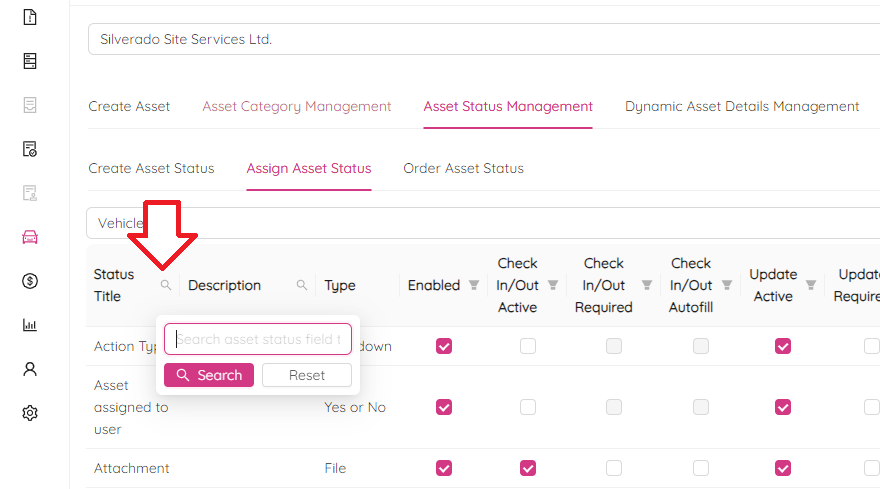
NOTE: You can search among status titles or descriptions by clicking on the
icon.
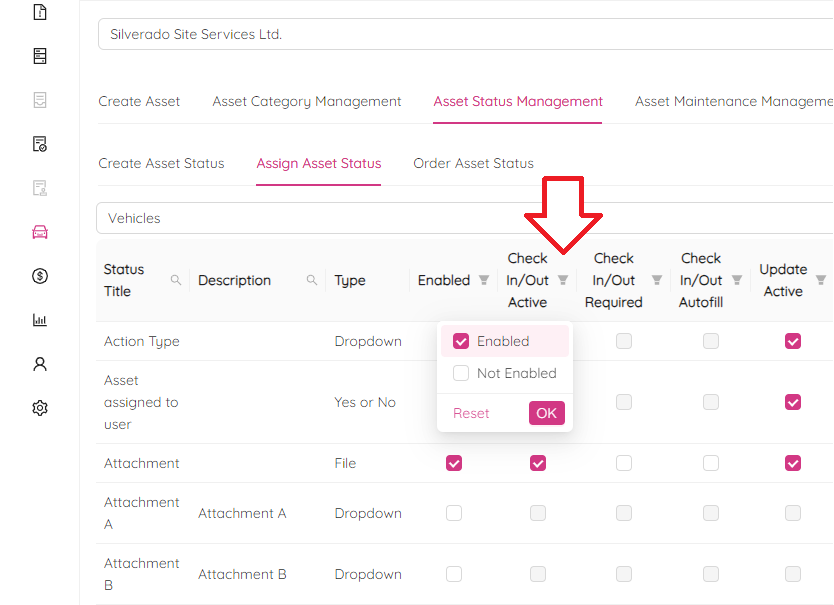
NOTE: You can filter out statuses by a parameter state by clicking on the
icon.
Order Asset Status
On the Order Asset Status tab you can change the order in which statuses are located on the form while being updated. After selecting a primary category you will see a page similar to the following.
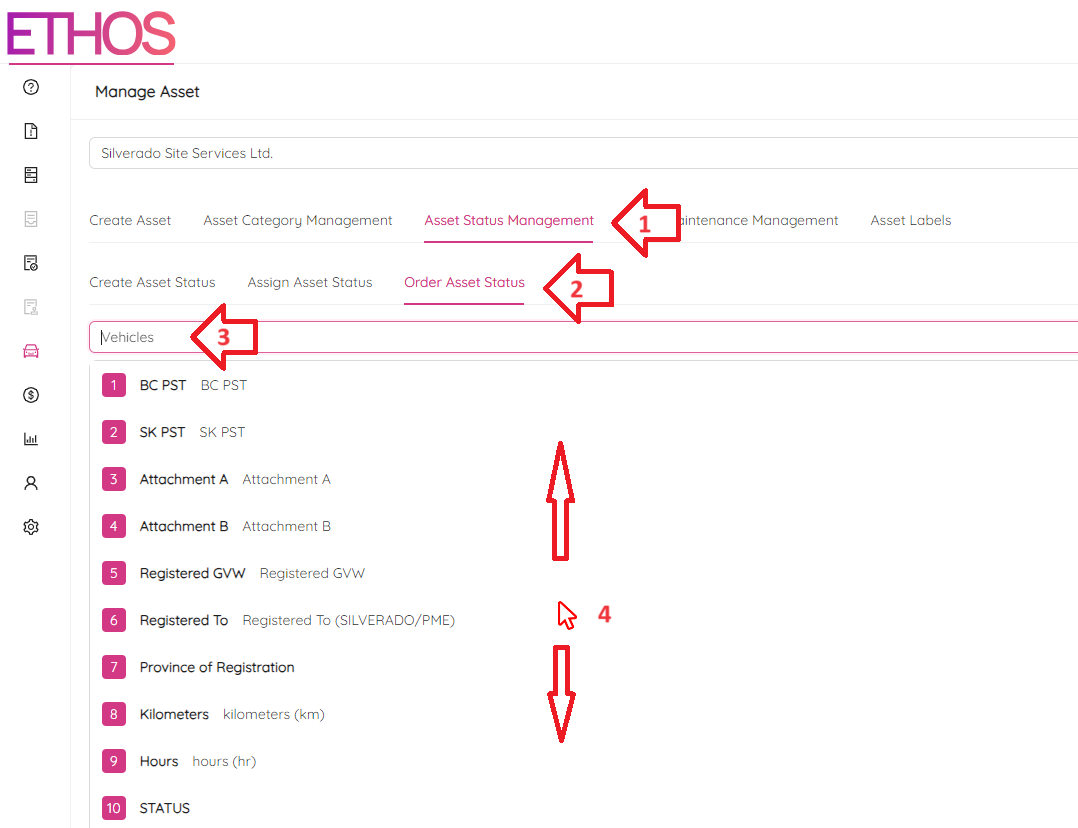
To change the status order, click on any status and drag it up or down.
Predictive Module Asset Status
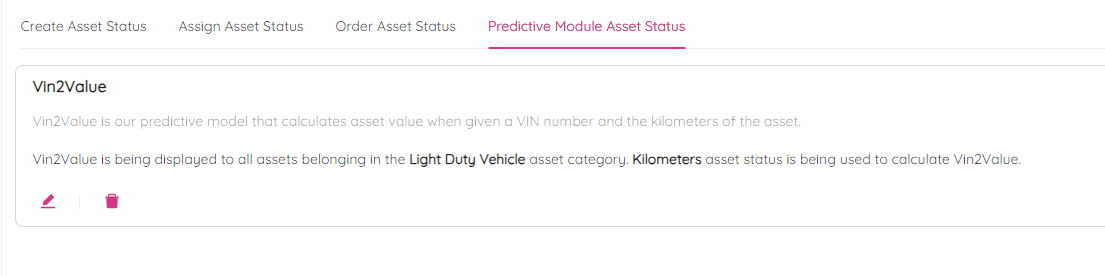
The Predictive Module Asset Status tab allows to configure asset statuses that are calculated automatically based on some prediction model. As an example, it can be an asset value based on current milage as shown below.